Static Messages
Airport Conditions and NOTAMs each have a free-form text box in the main window. On top of that, you can define static messages that can be toggled on or off. They’re good for phrases you use all the time. Static messages are saved to the ATIS station and can be applied with any selected preset.
Airport Conditions and NOTAMs work the same way, so this page covers both. Where they differ, it says so.


Adding or Managing Static Messages
To create or manage static messages:
- Click the AIRPORT CONDITIONS or NOTAMS label above the free-form text box.
- A dialog window will appear, allowing you to add, edit, or delete messages.
- You can reorder messages by selecting one from the list and using the Up or Down buttons. Messages are displayed in the ATIS in the order they appear, but only if their checkboxes are selected.
- Click Spacer… and choose Blank Line or New Line to add a spacer below the selected message, or at the end of the list if none is selected. A blank line puts an empty line between the messages around it in the text ATIS, and a new line puts a single line break there instead. Spacers have no text, so they can’t be edited. They are ignored at the start and end of the list.
- To delete several messages at once, hold Ctrl or Shift while selecting them in the list, then click Delete.
When composing or modifying a message, you can insert contractions by typing the @ symbol followed by the contraction variable name. As you type, an autocomplete menu will appear, showing available contraction options for quick selection. Contraction variables may optionally include the @ symbol as a prefix. Once you choose a contraction from the autocomplete dropdown, the @ symbol will be automatically removed.
Include Before Free-form Text
If enabled, the checked static messages will be included before the free-form Airport Conditions or NOTAMs text in the ATIS.
Conditional Messages
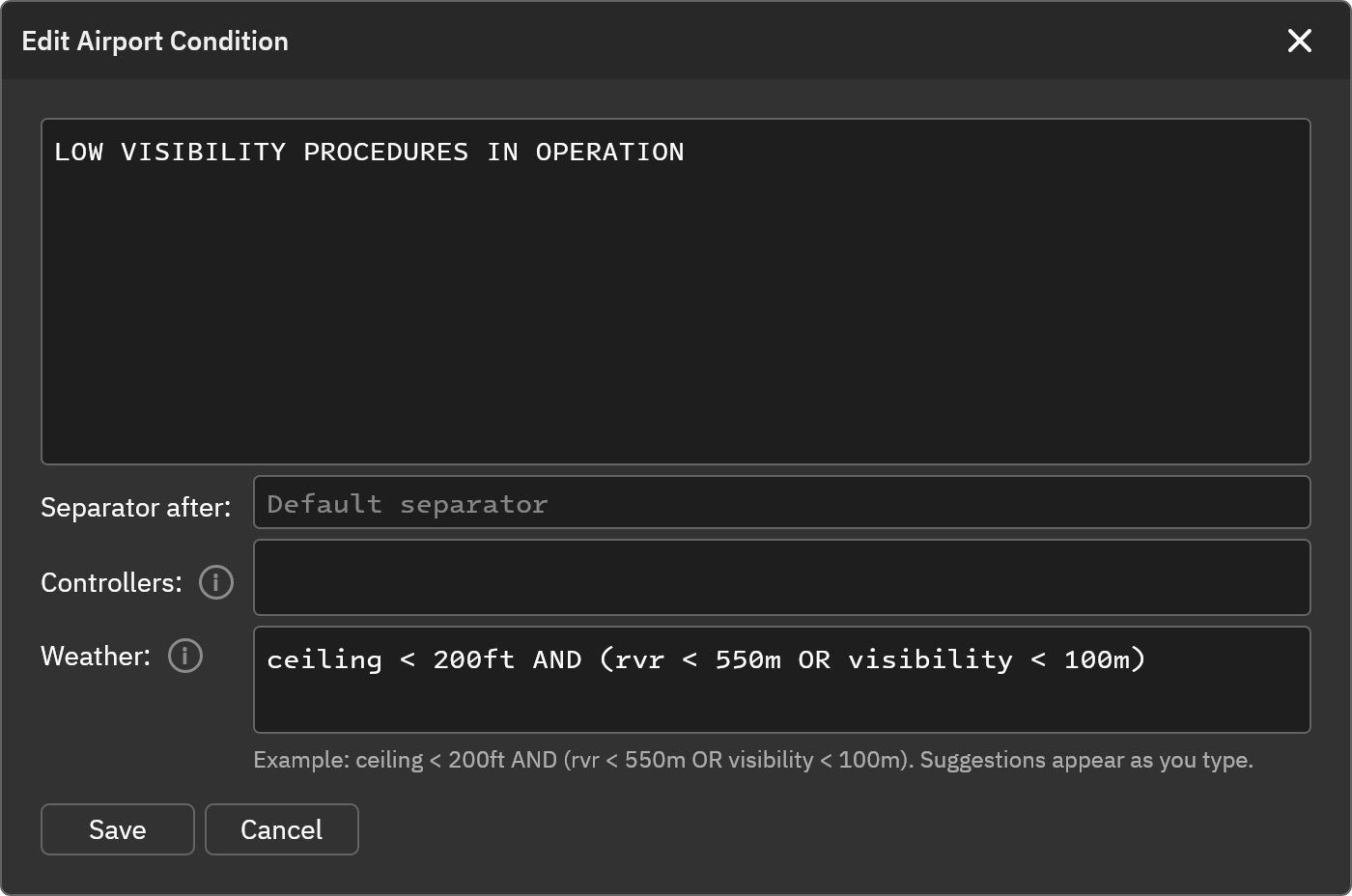
A static message can be included only while certain VATSIM controllers are online or offline, or only when the METAR meets rules you set, such as a ceiling or RVR limit. See Conditional Messages.
Quick Overrides
Sometimes you need a message on or off for a little while, without opening the dialog or editing its conditions. Right-click the Airport Conditions or NOTAMs text box in the main window and use the items below Save Airport Conditions (or Save NOTAMs):
- Static Messages: lists the messages that have no condition. A check mark means the message is in the ATIS. Click a message to turn it off for now, and click it again to turn it back on.
- Conditional Messages: lists the messages that have a condition. Click a message to force it into the ATIS even though its condition is not met, so you don’t have to remove the condition. Click it again to let the condition decide.
- Display Order: lists the messages that are in the ATIS right now, in the order they are read. Use the ▲ and ▼ buttons to move a message up or down. The menu stays open so you can move several messages.
The ATIS is rebuilt as soon as you click, and the ATIS letter does not advance.
Overrides are temporary. They are not saved to the profile or the message list, and they are cleared when you close vATIS. Reordering messages in the dialog also clears any order you set with Display Order. Only enabled messages appear in these menus.
Separators
When more than one message is checked, vATIS puts a separator between them in the ATIS. The separator is a period followed by a space unless you change it, so the checked messages read as separate sentences. Messages are used in the order they appear in the list.
- Default separator: The field at the bottom of the dialog. It goes between every two checked messages, unless a message has its own separator.
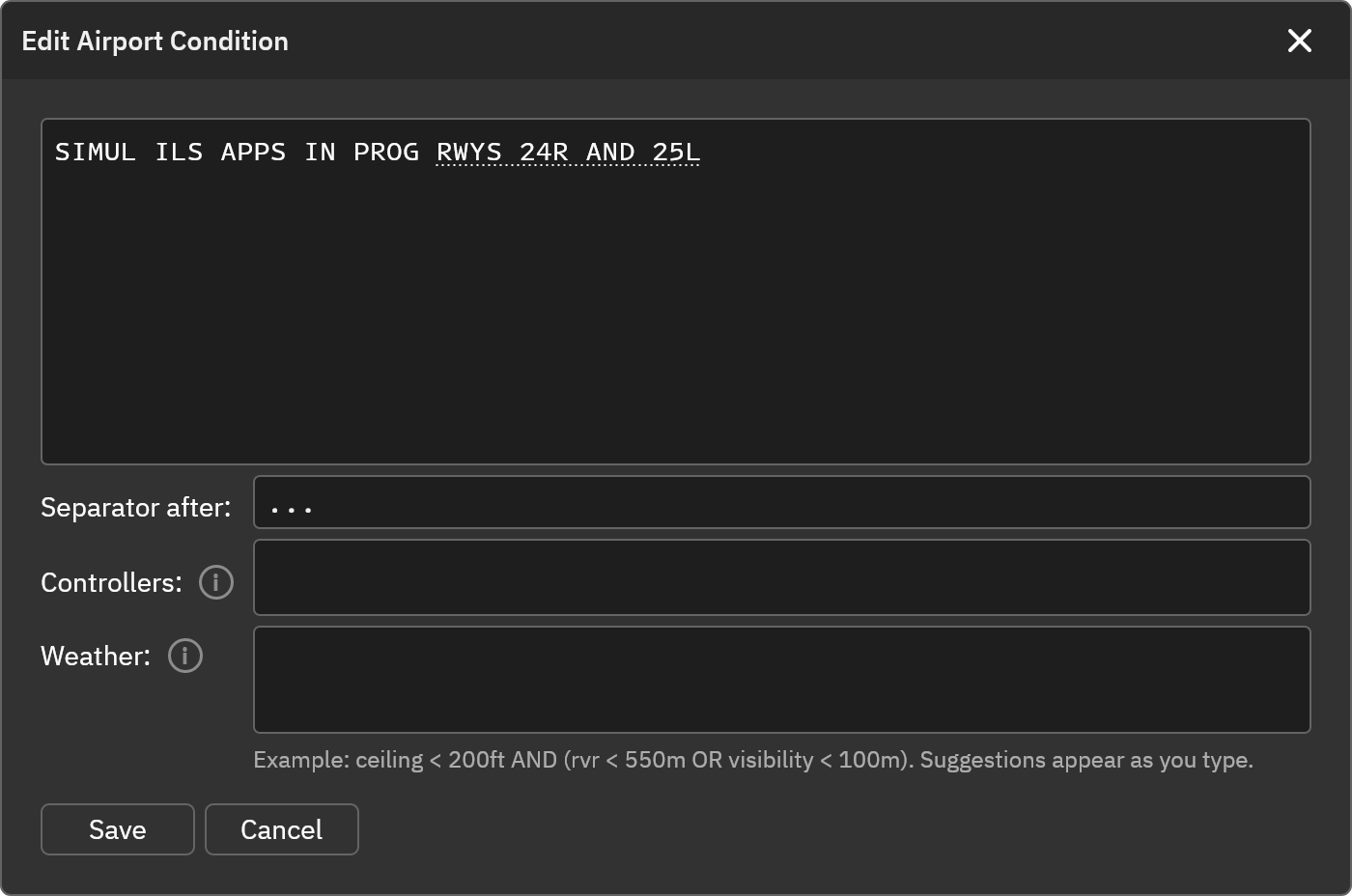
- Separator after: Set in the message editor, this replaces the default separator that follows the message you are editing. Leave it blank to use the default separator. It has no effect on the last checked message, since nothing follows it.
A separator is used exactly as typed, including spaces, so include any space you need (for example ... with a space after the dots). Separators apply only between the checked messages.
The checked messages are joined to the free-form text with a space for Airport Conditions and with a period for NOTAMs, whichever comes first.
For example, with these checked Airport Conditions messages and a separator of ... after the first one:
- SIMUL ILS APPS IN PROG RWYS 24R AND 25L
- SIMUL VIS APPS TO ALL RWYS ARE IN PROG
- RWY 6L/24R CLSD
the ATIS reads:
SIMUL ILS APPS IN PROG RWYS 24R AND 25L... SIMUL VIS APPS TO ALL RWYS ARE IN PROG. RWY 6L/24R CLSD
Note
While every separator is the default, vATIS tidies up repeated punctuation, so a message that already ends with a period does not produce two. As soon as any separator is customized, vATIS stops tidying and uses exactly what you typed. The one exception is a separator that starts with a period, such as
...or.\n: a message’s own trailing period is dropped when a separator follows it, so it isn’t doubled. For other custom separators, leave the final period off your messages and let the separators supply the punctuation.
Line Breaks
Type \n in a separator to start a new line. For example, a default separator of .\n puts each checked message on its own line, ending with a period. Use \n\n for an empty line between messages, or add a Spacer… to the list for a one-off break between two messages. Nothing is added after the last message, so line breaks at the very end of the text are removed. If the last separator ends with a line break, the last message still keeps the punctuation before it (the period in .\n).